> ## Documentation Index
> Fetch the complete documentation index at: https://atopile-feature-versioned-docs.mintlify.site/llms.txt
> Use this file to discover all available pages before exploring further.
# Install
> How to install atopile
## Install via VSCode/Cursor (Recommended)
atopile officially supports VSCode and Cursor.
We recommend using Cursor. AI is already getting very good at writing `ato` code.
Download it here: [https://www.cursor.com/](https://www.cursor.com/)
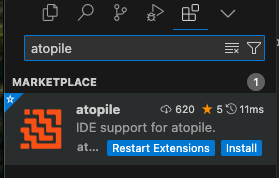
Once you have VSCode/Cursor just install the [atopile VSCode/Cursor extension](https://marketplace.visualstudio.com/items?itemName=atopile.atopile).
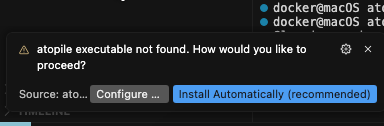
 After installation it will prompt you to install the `ato` CLI. Click the `Install Automatically` button.
 Set up an MCP server for this documentation with
```sh theme={null}
npx mint-mcp add atopile
```
## Installing KiCAD
If you want to layout or route PCBs you will need to install [KiCAD](https://www.kicad.org/download/).
```sh macOS (brew) theme={null}
brew install kicad
```
```sh Arch Linux theme={null}
sudo pacman -S kicad
```
```sh Ubuntu theme={null}
sudo apt install kicad
```
```sh other theme={null}
https://www.kicad.org/download/
# or click the KiCAD link above
```
Ultimately, `atopile` is a Python package, so you can install it wherever and however you want—but some Python package managers are better than others. Here's the recommended method to install atopile.
## Homebrew `brew` (recommended for macOS)
```sh theme={null}
brew install atopile/tap/atopile
```
## `uv` (recommended for other platforms)
1. Install `uv`. See: [https://docs.astral.sh/uv/getting-started/installation/](https://docs.astral.sh/uv/getting-started/installation/)
2. Install atopile with `uv`
```sh theme={null}
uv tool install atopile
```
If this is the first time you've used `uv` for a tool install, it might give you another command to run to finish setup.
Do it.
3. Check `ato` installed
```sh theme={null}
ato --version
```
### Editable installation (Best for development)
1. Install `uv`
See: [https://docs.astral.sh/uv/getting-started/installation/](https://docs.astral.sh/uv/getting-started/installation/)
2. Clone the repo
```sh theme={null}
git clone https://github.com/atopile/atopile
```
3. `cd` into the repo
```sh theme={null}
cd atopile
```
4. Install
```sh theme={null}
uv sync --dev
```
Set up an MCP server for this documentation with
```sh theme={null}
npx mint-mcp add atopile
```
## Installing KiCAD
If you want to layout or route PCBs you will need to install [KiCAD](https://www.kicad.org/download/).
```sh macOS (brew) theme={null}
brew install kicad
```
```sh Arch Linux theme={null}
sudo pacman -S kicad
```
```sh Ubuntu theme={null}
sudo apt install kicad
```
```sh other theme={null}
https://www.kicad.org/download/
# or click the KiCAD link above
```
Ultimately, `atopile` is a Python package, so you can install it wherever and however you want—but some Python package managers are better than others. Here's the recommended method to install atopile.
## Homebrew `brew` (recommended for macOS)
```sh theme={null}
brew install atopile/tap/atopile
```
## `uv` (recommended for other platforms)
1. Install `uv`. See: [https://docs.astral.sh/uv/getting-started/installation/](https://docs.astral.sh/uv/getting-started/installation/)
2. Install atopile with `uv`
```sh theme={null}
uv tool install atopile
```
If this is the first time you've used `uv` for a tool install, it might give you another command to run to finish setup.
Do it.
3. Check `ato` installed
```sh theme={null}
ato --version
```
### Editable installation (Best for development)
1. Install `uv`
See: [https://docs.astral.sh/uv/getting-started/installation/](https://docs.astral.sh/uv/getting-started/installation/)
2. Clone the repo
```sh theme={null}
git clone https://github.com/atopile/atopile
```
3. `cd` into the repo
```sh theme={null}
cd atopile
```
4. Install
```sh theme={null}
uv sync --dev
```